Creating Shot Sheets
Shot sheets define how inspection images are captured.
They capture inspection intent by specifying which views need to be captured, in what order, and with what framing. Shot sheets are created and managed at the team level so they can be reused consistently across projects, assets, and inspection campaigns.
A well-designed shot sheet reduces in-field guesswork and helps ensure inspection data is complete and repeatable.
Shot Sheet Editor
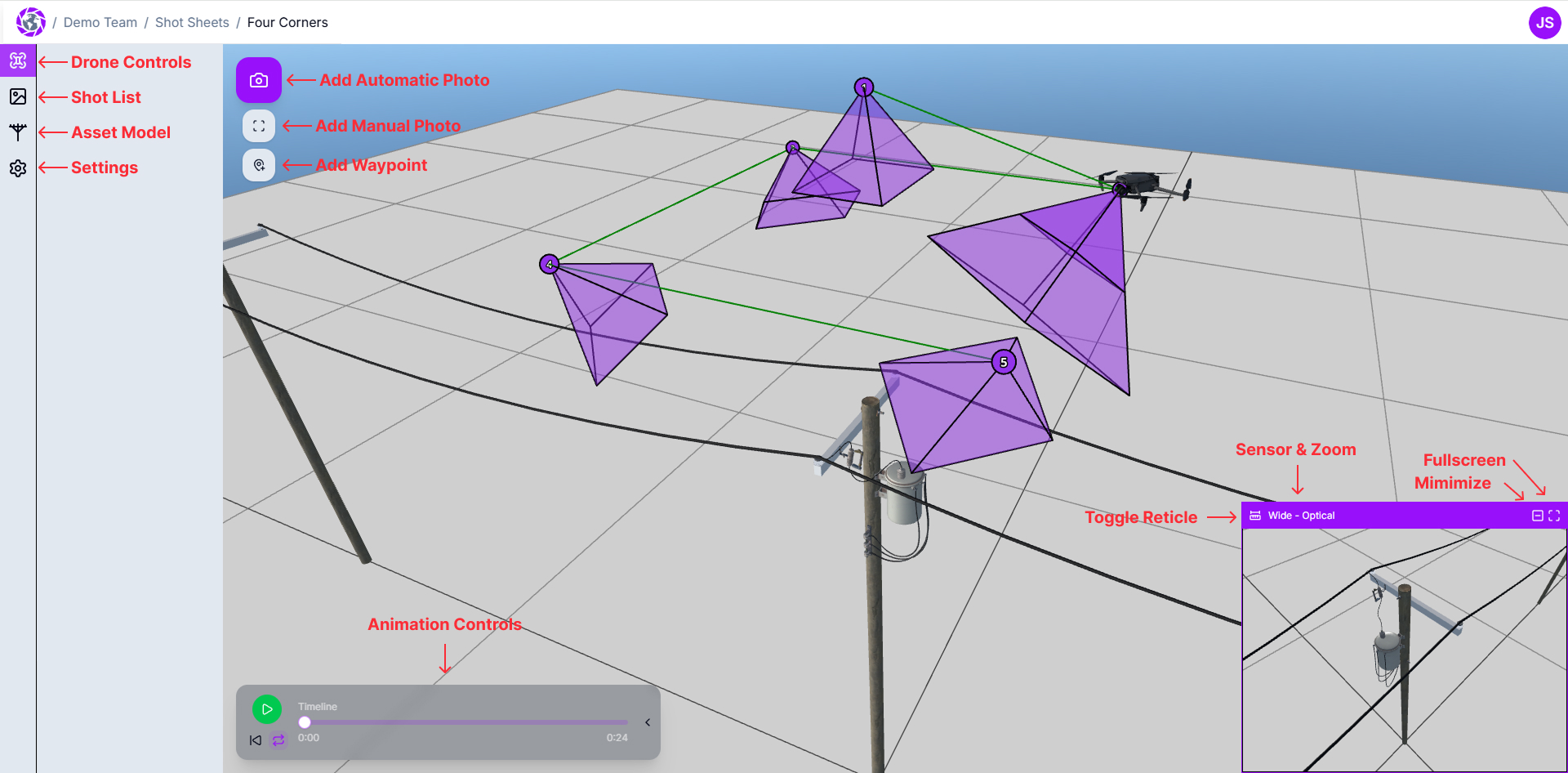
The Shot Sheet Editor is the primary workspace for designing and reviewing inspection shots. It combines a 3D planning environment with precise controls for defining camera behavior and sequencing.
The 3D Scene
The center of the editor is a third-person interactive 3D environment used to visualize assets, camera positions, and shot coverage.
You can:
- Left-click and drag to rotate the scene
- Right-click and drag to pan
- Use the scroll wheel to zoom
The 3D scene is used to validate spatial relationships and overall coverage, not to control drone flight.
Drone Action Buttons
Floating action buttons appear near the top-left of the 3D scene.
These buttons allow you to:
- Add automatic shots
- Add manual shots
- Add waypoints
These actions create new shots using the current position and rotation of the drone controls.
Animation Playback Controls
Playback controls appear in the lower-left corner of the editor.
These controls allow you to:
- Play or pause the shot sequence
- Scrub through the timeline
- Loop shot playback
Playback is used to review shot order and visual flow. It represents the sequence of inspection views, not a simulated flight path.
Camera Preview
The camera preview appears in the lower-right corner of the editor.
This preview shows the expected camera framing based on the current shot configuration and camera model. It is used to validate framing and field of view while making adjustments.
The camera preview is not a live feed. It represents modeled camera behavior based on shot parameters.
The Toolbar
The left side of the editor contains a tabbed toolbar. Each tab focuses on a different aspect of shot sheet creation and refinement.
Drone Controls
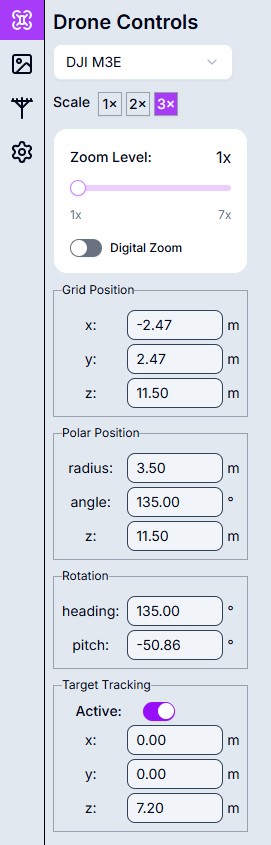
The Drone Controls tab is used to define camera position, orientation, and zoom for the active shot.
From this tab, you can:
- Select the drone model
- Adjust optical zoom levels
- Enable or disable digital zoom
- Update position using grid or polar coordinates
- Adjust heading and pitch
- Enable optional target tracking
Position and rotation values can be edited directly or adjusted by clicking and dragging on the value labels.
Currently supported drone models include the DJI M3E and DJI M30T. Additional drone models may be supported in the future.
Shot List
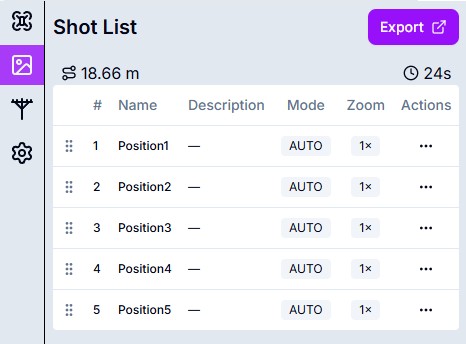
The Shot List displays all shots currently included in the shot sheet.
This tab provides:
- An ordered list of shots
- Estimated total distance and execution time
- Quick access to individual shots
Selecting a shot restores the drone controls to the state recorded for that shot, including target tracking settings.
Shots can be updated by resetting them to the current camera view or by going to the edit details page.
Asset Model
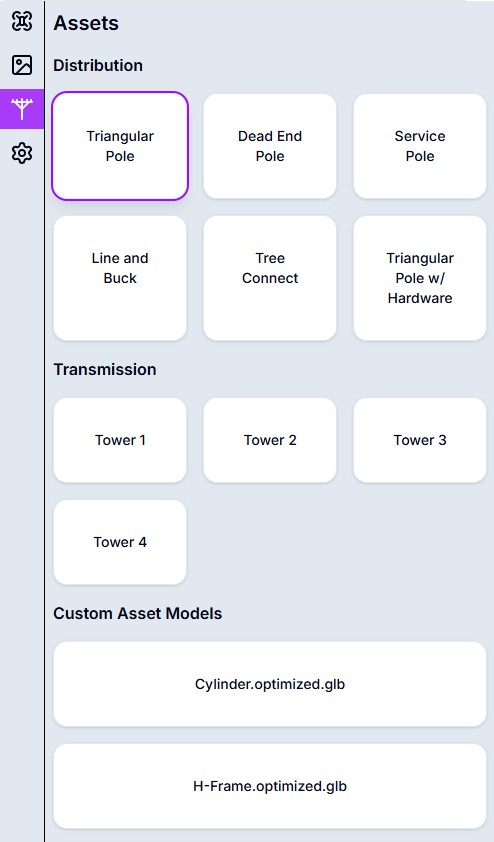
The Asset Model tab controls which 3D model is displayed in the scene.
Asset models provide geometric context for planning and help ensure shots are designed with appropriate scale and perspective.
A set of common distribution and transmission models is provided to help you get started. Custom asset models uploaded by your team will also be available here.
Shot Sheet Settings
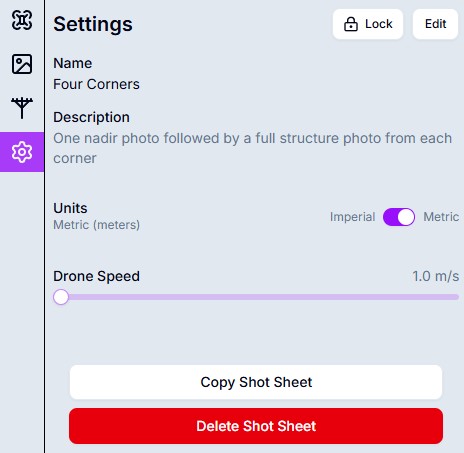
The Shot Sheet Settings tab contains configuration options that apply to the shot sheet as a whole.
This includes options such as locking the shot sheet to prevent editing once it has been finalized. Locking is useful when shot sheets are reused at scale and consistency across crews is required.
Only team admins can unlock a locked shot sheet.
Next Steps
After creating a shot sheet, you can:
- Upload or select asset models to improve spatial planning
- Create a project and add assets to be inspected
- Use assignments to apply shot sheets to real inspection work
- Export shot sheets for use with compatible flight control software